Google Business Profile holiday hours tell customers when you are open on Thanksgiving, Christmas and New Year’s Day. For an HVAC company, that matters more than for most. A furnace that quits on a holiday morning does not wait for Monday.
The fix takes a few minutes. Set special hours for each holiday before it arrives. Confirm the dates even when your hours stay the same. Then make your website, phone line and profile all say the same thing about emergency service.
This guide walks through each step for the 2026 holiday season. Thanksgiving falls on Thursday, November 26. Christmas is Friday, December 25, and New Year’s Day is Friday, January 1, 2027.
Why holiday hours matter for HVAC companies
Holidays bring cold snaps, full houses and furnaces running hard. When the heat goes out, the homeowner grabs a phone and searches. Your profile is often the first thing they see, and the hours shown there shape whether they call.
If your profile shows regular weekday hours on a holiday, two things can go wrong. A customer may call and get no answer. Or a customer may skip you because they assume you are closed, even if your on-call tech is ready.
Both cost you a job. Clear holiday hours fix the first problem. Clear emergency service wording fixes the second.
Holiday hours are one item on a longer fall list. If you have not done the rest yet, our heating season marketing ideas cover tune-up offers, reviews and follow-up.
How to set Google Business Profile holiday hours, step by step
Google calls these “special hours.” Google’s help page on how to set special hours says they cover holidays, events and other short changes. They do not change your regular hours. At the time of writing, the steps look like this:
- Go to your Business Profile. You can search your business name on Google while signed in to the account that manages it.
- Select Edit profile, then Hours.
- In the Business hours section, select the edit icon next to Special hours.
- Pick a date. You can accept a date Google suggests, add a custom date or edit one you already set.
- Set the hours. If you are open, clear the Closed box and enter your times. If you are closed, leave it checked.
- Select Save.
Google’s page notes that special hours only show when your business is set to “Open with main hours.” If your regular hours are not set, start there. Google’s guide to editing your business hours covers that first step.
Special hours replace your regular hours for that date only. The next day, your regular schedule comes back on its own. Screens and menu names change over time, so follow Google’s page if yours looks different.
Which holiday dates to set this season
Set every date where your hours, phone coverage or service level will differ from a normal day. For most HVAC companies, the list looks like this:
- Wednesday, November 25: the day before Thanksgiving, if you close early.
- Thursday, November 26: Thanksgiving Day.
- Friday, November 27: the day after Thanksgiving, if your office runs a short day.
- Thursday, December 24: Christmas Eve.
- Friday, December 25: Christmas Day.
- Thursday, December 31: New Year’s Eve.
- Friday, January 1, 2027: New Year’s Day.
Google also recommends confirming your hours for official holidays, even when they match your regular hours. That tells customers your holiday hours are accurate. So if you run normal hours on Christmas Eve, confirm that date too.
Planning a longer break? Google’s help page says special hours fit closures of up to 6 days in a row. For 7 days or more, it points you to mark the business temporarily closed. Keep that limit in mind if you plan a longer winter break.
How to show after-hours and emergency heating service
Many HVAC companies close the office on holidays but keep a tech on call. Your profile should show that clearly. Here are the settings that help, based on Google’s help pages at the time of writing.
If you answer calls 24 hours on a holiday
Set special hours for that date and choose times that cover the whole day. Google’s special hours page says one set of hours cannot be longer than 24 hours. If your coverage runs past midnight, split it into two sets. End the first at midnight, then start the second at midnight on the next day.
If you are open 24 hours every day
Google’s business hours guide lets you pick “24 hours” for each open day in your main hours. If you do that, you may not need special hours at all. Still, confirm the holiday dates so customers see they are accurate.
If only part of your service runs on the holiday
Google also offers More hours for services that run on a different schedule. Google says More hours should generally sit inside your main hours, and they only show once main hours are set. Many HVAC profiles will not have a type that fits, so check which types yours offers first.
Then say it in words. Your business description and your services list are good places to state that you offer emergency heating service, and when. Only describe what you will actually deliver. If a no-heat call on Christmas means a callback within the hour, say that, not more.

Match your website, phone line and answering coverage
Your profile is one of several places a customer checks. If your website says one thing and your profile says another, people get confused. A confused customer may call someone else.
- Website: update the hours on your contact page and footer. Add a short holiday banner with your dates and your emergency line.
- Phone greeting: record a holiday message that says when the office is closed and how to reach the on-call tech.
- Call routing: test forwarding to the on-call phone before each holiday. Call it yourself from a cell phone.
- Online booking: block holiday dates that you cannot staff, so no one books a slot that will not happen.
- Other listings: update hours on other directories you manage, so they match your profile.
The phone line matters most on a holiday. If a holiday call rolls to voicemail, that customer may simply call the next company. Our guide on choosing a live, AI or hybrid HVAC answering service compares options for nights and holidays.
A fast text can also keep the customer talking to you while your tech calls back. Our AI automation service follows up with new leads by text within seconds. That way a missed call does not turn into a lost job.
Announce your holiday hours with a profile post
Special hours fix the hours line. A post lets you add context. Google’s help page on Business Profile posts says an update can include text, a photo or video, and a button.
A short update in the week before Thanksgiving works well. Say which days the office is closed, that emergency heating service is available, and how to reach you. Add a real photo of your team or a van, and a call button.
Do the same before Christmas. Two short posts cover the whole season.
Watch for Google updates to your hours
Your hours can change without you touching them. Google may update a profile from sources like user reports and licensed content. That comes from its help page on updates to your Business Profile. Users can also suggest edits.
For some suggested edits, Google sends an email or an in-product notice. Its page says you then have 4 days to accept or reject the suggestion. If you do not respond, Google may publish the update when other public information supports it, such as your website.
That is one more reason to keep your website hours current. It also means someone should check the profile and the inbox tied to it during the holidays. In the profile editor, Google shows changed information in blue text.
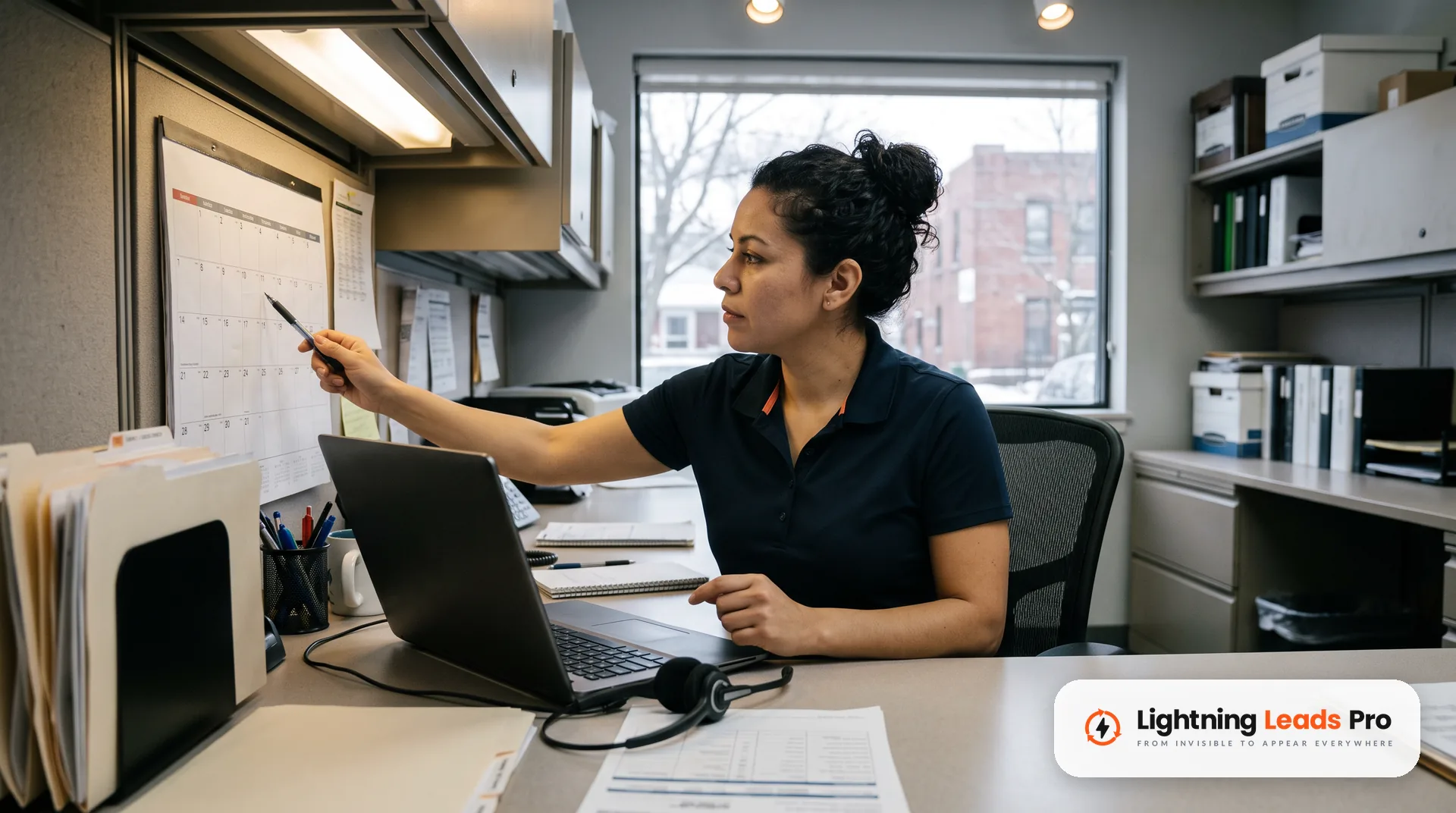
A simple holiday hours checklist for your team
Put this on the office calendar for the first week of November. It does not take long.
- Confirm your regular hours are set and correct.
- Decide who is on call for each holiday and the hours they cover.
- Add special hours for every date on your list, including days with normal hours.
- Update your website, phone greeting and online booking to match.
- Test call forwarding to the on-call phone.
- Publish a short holiday update post on your profile.
- Check the profile and its email inbox for Google updates through New Year’s Day.
Want a full profile review, not just hours? Our guide to optimizing a Google Business Profile for home services covers categories, photos and reviews.
Frequently asked questions
How do I change my business hours on Google for a holiday?
Use special hours. In your Business Profile, select Edit profile, then Hours, then the edit icon next to Special hours. Pick the date, set your times or leave Closed checked, and save. Your regular hours return the next day.
How do I edit my business hours in Google Business Profile?
Select Edit profile, then Hours. Next to Hours, select Edit, then Open with main hours. Check each day you are open, set the times and save. Main hours need to be set before special hours will show.
Why is Google changing my business hours?
Google says it may update a profile from user reports, licensed content and suggested edits. For some edits, you get a notice and 4 days to accept or reject. Keeping your website hours current and checking your profile often helps you catch these early.
Should I set holiday hours if I am open as normal?
Yes. Google recommends confirming hours for official holidays even when they match your regular hours. It tells customers your holiday hours are accurate.
What if my business closes for more than six days?
Google’s help page says special hours cover closures of up to 6 days in a row. For 7 days or more, it recommends marking the business as temporarily closed.
Get your profile ready before the first holiday call
Holiday hours are small, but they sit right where a cold customer decides who to call. Set your dates now, match your website and phones, and say clearly what emergency service you offer.
Want help keeping your profile accurate all year? Our Google Business Profile management team keeps your hours accurate and publishes regular updates to your profile. Or Book a Free Local Lead Growth Session and we will review your profile with you.