
HVAC business cards still earn their spot in the truck. A homeowner may keep your card long after the job. When the heat quits next winter, that card can decide who they call.
A good card is simple. Put your business name exactly as it reads on your Google Business Profile, one phone number and your website. Add your services in a few words and your license number where your state requires it. Then add a QR code to your review page or booking page.
The card does its job when your techs hand it out. This guide covers what goes on the card and how to print it. It also shows how to use it on every call.
Key takeaways
- Use your business name exactly as it appears on your Google Business Profile.
- Print one phone number, your website and two or three services, and keep the rest off.
- Some states treat business cards as advertising, so check your license rules with your state board.
- A QR code on the back can take customers to your Google review page or your booking page.
- Cards work best when every tech hands one out and leaves one where the homeowner will see it.
Step 1: Decide what the card has to do
Most HVAC business cards do two jobs. They help a customer reach you again, and they make it easy to leave a review after the visit.
A card a tech leaves at the house is for the next call. A card handed over after a job can also ask for a review. Pick the main job first. It decides what goes on the back.
Also decide who the card is for. One company card works for most shops. Cards with each tech’s first name can feel more personal, but you reprint them when people change.
Step 2: Put these must-haves on every HVAC business card
Think of this as the full list for the front. Anything else has to earn its space.
- Your business name. Use the same words as your Google Business Profile, in the same order.
- What you do. Make heating, cooling or HVAC easy to see, even if your name already says it.
- One phone number. Use the number on your profile. Make it the biggest line after your name.
- Your website. Use your plain domain, short enough to remember.
- Services in a few words. Pick two or three that bring you calls, such as furnace repair or AC replacement.
- Your license number. Add it where your state requires it. Step 3 covers this.
- Your logo. Keep it clean and use the same colors as your vans.
The name matters most, because customers may look you up before they call. Google’s guidelines ask you to use your real-world name. That is the name you use consistently on your storefront, website and stationery. Google lists stationery, and your card should match it too.
Those same guidelines ask for a phone number under your direct control. They prefer a local number over a central call center line. So print the number that is on your profile, and only that one.
Not sure your name and number match everywhere customers look? Book a Free Local Lead Growth Session and we will show you how your business appears next to your competitors.
Step 3: Check your state’s license rules
Some states count a business card as advertising, and advertising may need your license number. Rules differ by state and can change. Two examples show how they vary at the time of writing.
- California: The Contractors State License Board lists business cards among the ways contractors advertise. It says licensed contractors must include their license number in all forms of advertising.
- Florida: State law says the contractor’s number must appear in each advertisement, regardless of medium, as defined by board rule. The same section also says that term does not include business stationery.
So the answer can depend on your state, your trade and how your board defines advertising. Check with your state licensing board before you print. When in doubt, you can add the number anyway, since it takes one short line.
The same goes for the word bonded. California’s board warns contractors not to advertise that they are bonded. Check your own state before you print those words.
Step 4: Add a QR code to your review page or booking page
A QR code saves the customer from typing. Point it at one place only. For most HVAC companies, that is either the Google review page or an online booking page.
How to get your Google review link and QR code
Google’s help page on creating a review link or QR code gives these steps, at the time of writing:
- On a computer, go to your Business Profile at business.google.com.
- Select Read Reviews, then select Get more reviews.
- To copy the link, select Copy.
- To download the QR code, right-click it and select Save image as.
The same page says review QR codes can only be made in a computer browser, not on a phone. Send the saved image to your designer or printer.
Using a booking page instead
If the card’s main job is the next service call, link the QR code to your booking page. Use a page that works well on a phone. A simple page such as yourdomain.com/card can also help you trace calls that came from the card.
Whatever you link, scan the printed proof with two different phones before you approve it.
Step 5: Lay out the front and back of the card
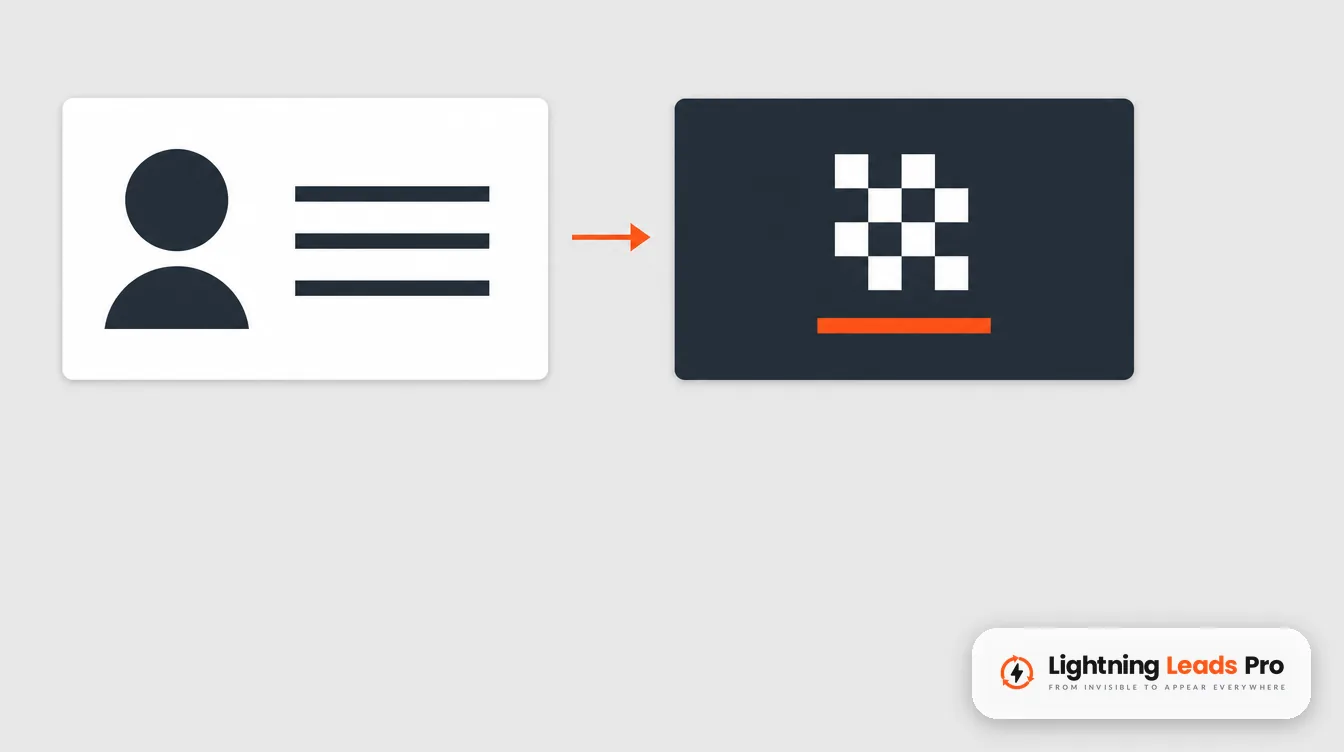
Use the front for who you are and how to reach you. Use the back for the one action you want next. This table shows a simple split.
| Item | Front | Back | Must-have or nice-to-have |
|---|---|---|---|
| Business name and logo | Yes | Small logo only | Must-have |
| Phone number and website | Yes | Phone again, if room | Must-have |
| Services in a few words | Yes | No | Must-have |
| License number | Yes, if required | Or here, if your board allows | Must-have where required |
| QR code with one line of text | No | Yes | Nice-to-have, and worth it |
| Tech name or a notes line | No | Yes | Nice-to-have |
| Se habla español | Optional | Optional | Only if a caller can reach a Spanish speaker |
Keep one line of plain text next to the QR code. For example: “Scan to leave us a Google review” or “Scan to book your next visit.” A notes line lets a tech write the date of the visit or the filter size.
Leave out a second phone number, a long service list, a row of social icons and any price or offer. A card can sit in a drawer for years, and offers change.
Step 6: Pick the paper and finish, then print
Vistaprint’s standard card page lists a 3.5 by 2 inch card on 14 pt stock. It offers glossy, matte or uncoated paper, with upgrades such as linen and kraft.
For HVAC work, pick a card that holds up in a shirt pocket and a kitchen drawer. If your techs write notes on cards, order a sample and test your pen on it first. Rounded corners and special finishes are optional.
Sample prices
Here are two sample prices we checked on Nov. 9, 2026. GotPrint’s business card page showed $24.85 for 500 standard cards. That price was for full color on the front only. MOO’s business card page showed 50 standard cards from $23.00.
These are sample prices, not quotes. Shipping, double-sided printing, paper upgrades and quantity change the total.
Check the proof before you approve it
- Compare the business name to your Google Business Profile, letter by letter.
- Read the phone number and web address out loud, then have someone else do the same.
- Check the license number against your state’s wording.
- Scan the QR code with two phones and confirm where it lands.
- Print one copy at full size and read it at arm’s length.
Step 7: Hand out HVAC business cards on every call
A box of cards in the office does nothing. Make the card part of every visit, the same way you check the filter.
Where to leave the card
- At the thermostat. Ask the homeowner first, then set a card near the thermostat where they will see it.
- On the equipment. Ask the homeowner if you can add a service sticker with your number to the outside of the furnace or air handler. Keep it off the rating plate, wiring diagram, warning labels and any vents or louvers.
- On the invoice. Staple a card to every printed invoice, or add a picture of the card to emailed invoices.
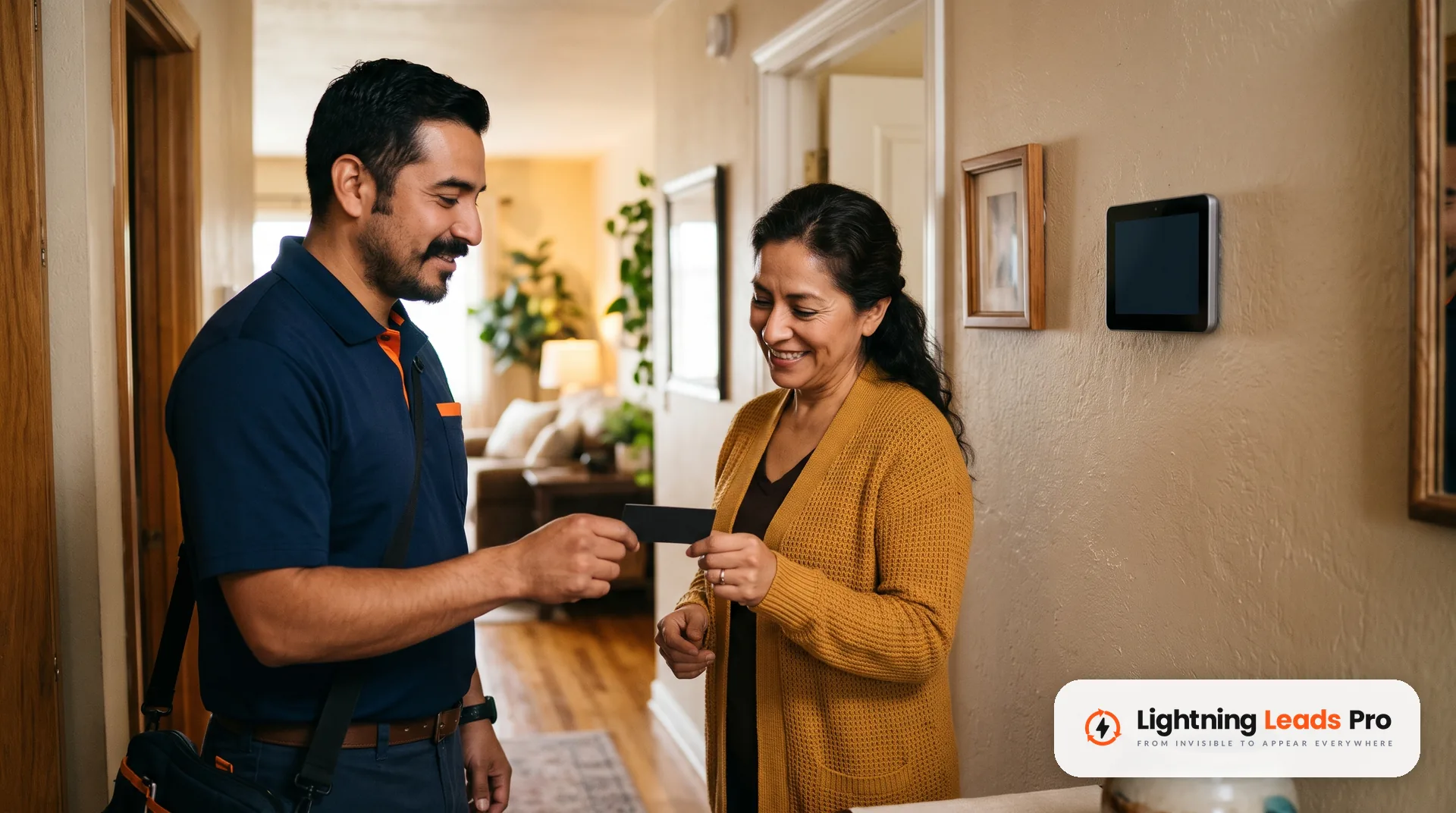
- In the customer’s hand. Hand it over when you explain the work, not as you walk out.
A sticker on the equipment can help the next time something goes wrong. The homeowner sees your number right where the problem is.
Ask every customer for a review
When the job is done, hand over the card with the QR code and ask for a review. Ask every customer, not only the ones who seem happy. Google’s policy does not allow selectively asking for positive reviews.
The same policy bars incentives such as discounts or free service in exchange for a review. It also says not to pressure customers to leave a review while you are there. Keep the ask short: “If you have a minute later, this code takes you to our Google reviews.”
Our guide on how to get more Google reviews covers the full process. This video walks through how HVAC companies ask for reviews:
Track the calls the card brings
Add one question to your call script: “How did you hear about us?” Log “business card” as an answer in your job records. After a few months, you will know if the cards are working.
Your cards should match your trucks too. Planning a new wrap? Our HVAC van wrap guide covers what goes on a van and what stays off.
Frequently asked questions
What should be on an HVAC business card?
Your business name as it appears on your Google Business Profile, one phone number, your website and a few services. Add your license number where your state requires it. A QR code on the back is a useful extra.
Do I need my license number on my business card?
It depends on your state. California’s board lists business cards as advertising and requires the license number in all advertising. Other states define advertising differently. Check with your state licensing board.
Where do I get the QR code for Google reviews?
On a computer, open your Business Profile and select Read Reviews, then Get more reviews. You can copy the link or save the QR code image. Step 4 lists the steps from Google’s help page.
Should my business card be glossy or matte?
Either can work. If techs write on the cards, order a sample and test a pen before you buy a full box.
Can I offer a discount for a Google review on my card?
No. Google’s policy does not allow incentives such as discounts or free service in exchange for reviews. Ask every customer, with no reward attached.
Make every card point to the same business
A business card is small, but it carries your name, your number and your reviews into the home. Keep it matched to your Google Business Profile, and ask every customer for a review.
We can help with the online side. Our Google Business Profile management keeps your hours, service areas and contact details current. As an add-on for our local SEO clients, our reputation management sends a review request to every customer after each job.
Want to see how your company shows up when a customer searches your name? Book a Free Local Lead Growth Session and we will walk through it with you.